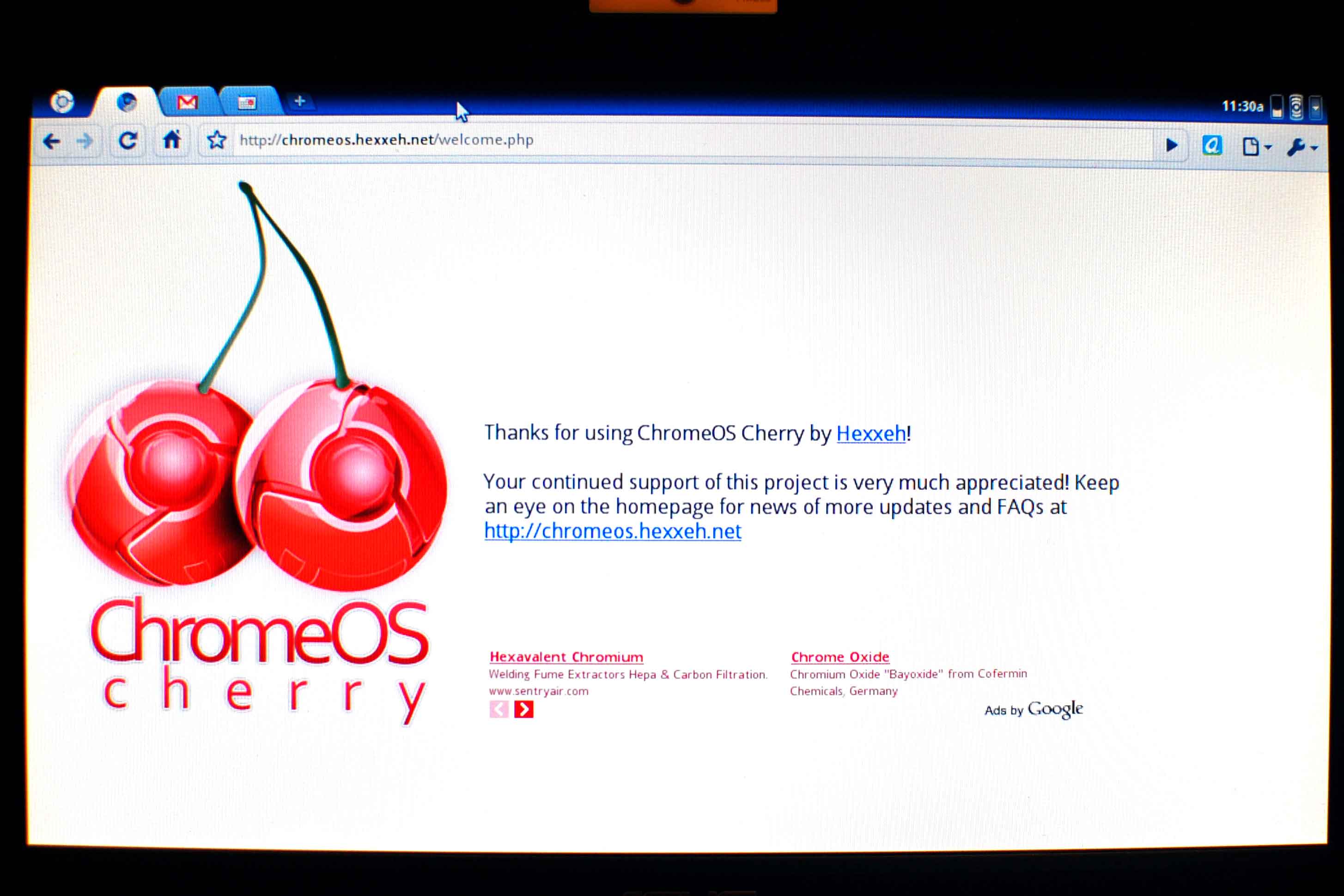
Google Chrome OS – First Impressions

5 12 2009

About - Click on image to enlarge

Google Chrome OS (Cherry) is available for download. This is a preview release of the product. Google announced earlier this year that they would be rolling out an operating system  sporting its Chrome browser. True to their word here it is!!

The current release is a bootable image and is made available for writing to a USB drive. If you are using windows and want to try it you will need a program capable of unzipping the tarball file which is intended for use with Linux. I used 7-zip to do the extraction, for some reason I had to extract the extracted file before I got to the drive image I needed to flash to the USB drive.

Menu - Click image to enlarge

The first thing you notice once you are logged in is that you are presented with the Chrome browser, there is no traditional desktop. The menu is accessed by clicking on the top left tab in the Chrome browser. These are basically shortcuts to specific websites and services. This version of the Chrome browser supports Chrome extensions, which seem to install OK without issues. It booted up in 14 seconds on an average performance USB drive. Slower than Ubuntu 9.10 on the same computer It isn’t a  fair comparison, Ubuntu booted off a fast SSD drive. While Chrome booted fine on my Acer laptop it was not able to detect either the wireless adapter or the on board ethernet. The Acer is not on the list of compatible computers, so I then booted Chrome on my ASUS Eeepc 900 which is compatible. It worked fine detecting the wireless and authenticating using WPA2 encryption.
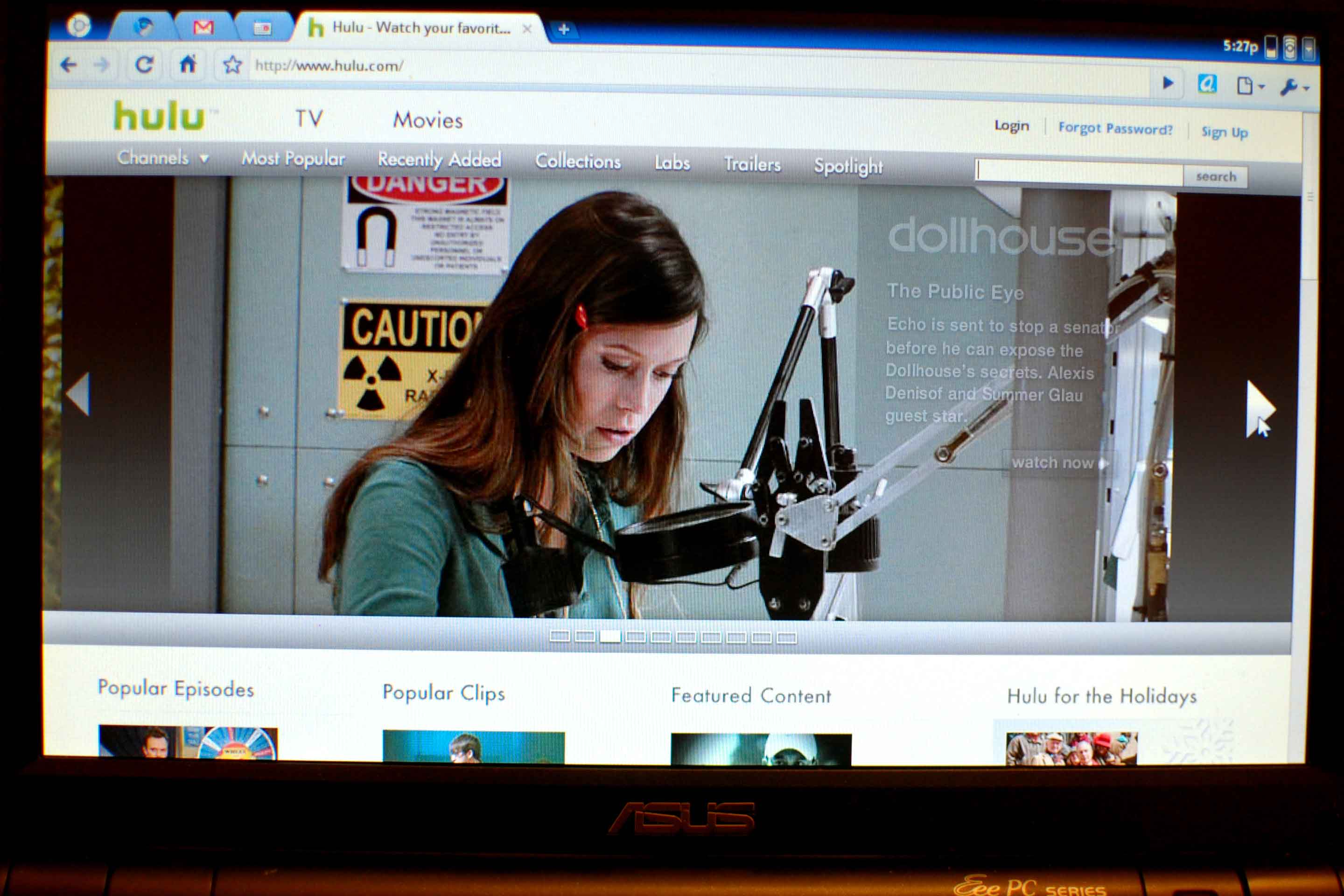
Hulu in Chrome OS - Click to Enlarge

Out of the box Chrome is flash ready and plays Hulu and YouTube videos without problems. The EeePC had trouble keeping up with the video feed, (using Windows 7 on the fast SSD drive works much better). Video sluggishness is probably a function of using the USB drive to boot. I tested several websites, predictably the google website worked without any problems. Yahoo mail complained that the browser wasn’t supported but worked just fine after I opted to continue anyway. I didn’t notice any rendering problems on any sites. Storage to folders on the USB drive is possible with Chrome OS, it wasn’t obvious how one could browse these files at a later date except in a file open dialog presented by google docs or another web application.

There is no option in Chrome OS to shutdown the computer. I found that simply pressing the power button once initiated a controlled shutdown. Closing the netbook screen put Chrome into a suspend mode.

As I used Chrome more I noticed that it would occasionally fail to render the entire row of tabs and options, hovering over or clicking on the ‘dead space’ fixed the issue. Looks like they still have some work to do there, at least on the ASUS netbook I used.

I’m surprised the product is complete as it is already, I can see it being ready before we can collectively blink. I’ll be on the lookout for more recent builds in the coming weeks and months.

It is promising – but how popular will it really be? One is totally constrained to internet applications, which is the direction the industry is going, I’m not sure the average user is ready for total commitment to running everything in the cloud just yet. (Neither am I :-)


Google DNS to take on OpenDNS?

4 12 2009

I have used OpenDNS for several years now with great results. I encourage others to use the service where possible. ISP’s really don’t want to sink money into services such as email or DNS, it’s a money pit as far as they are concerned so their services can bog down due to underfunding or otherwise be managed poorly.

Google now announce they have a DNS service. Is this a OpenDNS killer or will the Google name brand simply legitimize the idea of using an alternative DNS provider and actually help grow the market for everyone including OpenDNS?

OpenDNS are serving almost 20 billion DNS requests per day and have presence in ten markets around the world. It is likely that Google can reach more markets more quickly and have the money to provide more equipment. However failed URL requests from OpenDNS end up at a customized google search page, why would Google want to hurt this extra business? I see the Google move as benevolent towards the internet in general and also towards third parties like OpenDNS. Poor DNS can spoil the internet experience, Google want to ensure you can get to websites (including theirs) quickly an efficiently.

Which is best, Google or OpenDNS?

OpenDNS offer content filtering that rivals that from premium appliance providers such as WebSense. For small to medium businesses this is a great enhancement to their internet productivity. For those with kids, it serves as net nanny without having to load down the PC’s in the house with filtering software. Neat!!

Google will probably have a DNS server closer to you, but without the extra features of OpenDNS it is a service of last resort, not one of choice.

I’ll be interested to see if Google starts adding services to their DNS offering in the coming months/years. Then we will know what their true intentions are.


Office 2010 Installation Woes

4 12 2009

My first two installations of Office 2010 went very smoothly, however the third was definitely not a  charm. During the installation I ran into two errors.

Error 1310. Error writing to file: C:\Windows\Installer\21c0d0.msi.    Verify that you have access to that directory.’

Error 1935. An error occurred during the installation of assembly component {4FB1241B-9730-4DF1-B83B-1E9CFB73AAE4}. HRESULT: 0x80070005.

The second error caused the installation to fail and abort. Even running the install as administrator did not result in success, though the first error was resolved by doing so. Each time I ran the install it would fail at a different place in the install.

Eventually after rebooting many times and disabling various applications such as Carbonite and retrying it finally succeeded. I subsequently found some blogs complaining about similar problems during install of the 2010 office beta. The applications that seem to come up on the blogs are Panda AV and Microsoft Security Essentials. I do run Security essentials on all the three computers I installed Office 2010 on, so the problem would appear to be somewhat random, but I suspect security essentials contributed to the problems.

My advice to those installing office 2010 is disable security essentials (and other applications) and be sure to run the installer as administrator.

Update 2010-05-01

The final version of Office 2010 also suffers from touchy installation problems. The best course of action for office 2010 installs is to

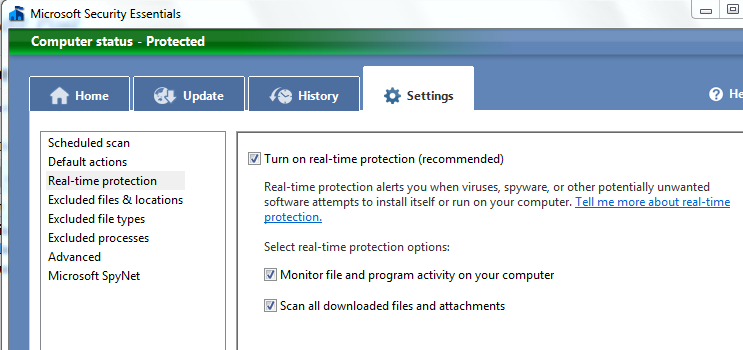
  • Disable Real-time scanning in Microsoft Security Essentials. (See below)
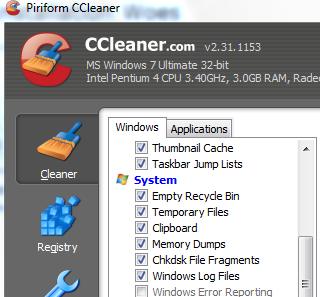
  • Clear up any temporary files using CCleaner. (See below)
  • Pause Carbonite
  • Run the install program as administrator.

Be sure to uncheck the real-time scanning in Security Essentials

Use CCleaner to eradicate all temp files on your system

If you had installed 2010 Beta, be sure to unistall all office products prior to install.

Upgrading from 2007 can also be problomatic, best to do a complete uninstall first.


Office 2010 – First Impressions

3 12 2009

Office 2010 public beta now available

The Microsoft Office 2010 public beta is now available for anyone to download and try for free. The Beta is valid until October 31st 2010, so if you need a copy of office for a new computer this Christmas, don’t buy office 2007, use the 2010 beta until it is finally released (whenever). The beta is full feature and is not crippleware. Thank you Microsoft!!

I’ve had a quick tour of the new office suite and here are a couple of my initial ‘drive by’.

Ribbon, Ribbon, Ribbon

Minimize Ribbon, new function

Office 2007 introduced the ribbon interface. Microsoft applied this to the core office products only, products like Project, Visio etc did not get the facelift. With 2010 all office applications now sport a revised version of the ribbon.

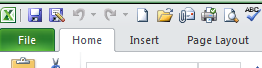
One really nice feature is a button to minimize the ribbon to give one more screen real estate. The reality is that the ability to minimize the ribbon was available in Office 2007 as well, but via Ctrl-F1 keyboard shortcut or via an option on the quick access toolbar. Microsoft must have realized that most users were unaware of this (me included).

The Orb is gone and File is back!

Office 2007 'Orb'

Office 2010 File menu drop down

I imagine there are a lot of people who will applaud this, not having a file menu drop down just makes folks uneasy. Interesting what bugs us :-)

I noticed the color of the File menu option is the same as the programs desktop icon, so in word its Blue, PowerPoint its orange etc. Not sure why it had to be colored, but it is.

Excel Limits

With several versions of Excel, Microsoft have increased the number of rows and columns it will support. Have they increased in 2010? The answer is yes and no. Excel itself works similar to 2007 but a new feature (PowerPivot)  allows Excel to draw its data directly from a SQL database so how does 100 million rows sound?

Lots of new features?

Doing a quick drive by of the basic office apps, Word, Excel, Powerpoint I didn’t notice a bunch of new features, however when I looked at Visio 2010 I was able to do all sorts of things with Visio I haven’t been able to before. My suspicion is that the feature set is similar, the ribbon interface has exposed me to so many more features I was blissfully unaware of. I ended up with a really sharp looking diagram versus what I could have done with Visio 2003.

File Format Compatibility

So far so good in opening 2010 documents with 2007 and 2003 products. Visio 2003 can open 2010 files just fine. 2007 can open excel and word documents just fine. Word Excel and Powerpoint still defaults to docx, xlsx, pptx file formats as with 2007.

Speed of execution

I have tested Office 2010 directly on a desktop PC and also on a virtual machine running Windows 7 (on top of XP). Even on the virtual machine office programs open comparatively quickly, Microsoft must have done some work here to improve the time it takes to open an application.

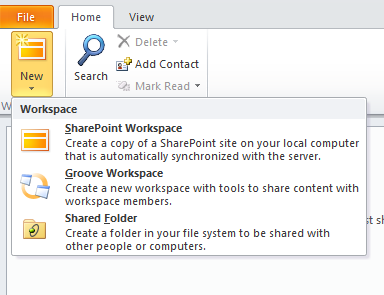
SharePoint Workspace basic functions

One component that was slow to execute was the SharePoint Workspace component. I was pleased to see in the SharePoint Workspace was a ‘google gears’ type function so that one can work with SharePoint resources while disconnected from the server using a local copy and sync up later.

Summary

I didn’t spend very long looking at the new Office suite, but my first impressions are that it the suite performs better, has a more consistent look and feel and has a few new features. Worth the money to upgrade from 2007 when it comes out, maybe. Worth putting off the purchase of office until 2010 comes out, definitely!!


Net Neutrality, Bandwidth Hogs and the ISP’s

3 12 2009

Netzians can easily be drawn into a heated argument regarding Net Neutrality, so what is it and do we want it?

Definition

An underlying principle of Net Neutrality is that as a consumer we will not have our internet access hindered based on where we go, what equipment we attach to the internet or what type of internet services we use. (Here’s a definition). Sounds like a good idea? Or is it?

Legislate or not?

To ensure Net Neutrality legally would require legislation and regulation of the internet providers and websites. Do we really need the government telling us what we can and cannot do on the internet? Legislation can be made to sound good, such as the Internet Freedom Act, who would vote against that? Censorship isn’t freedom.

So why not just leave it alone, isn’t it already neutral? In some cases no it is not neutral, ISP’s are increasingly using ‘Deep Packet inspection’ to examine the traffic coming from and towards your home. If they see something they don’t like they could potentially stop it or degrade it. Examples of this are Comcast blocking of  Bittorrent, or Shaw Cable degrading Vonage phone calls (unless their customers pay an extra fee).

Greed on both sides.

BitTorrent users can consume large amounts of internet bandwidth downloading and uploading files. This can and does reduce speeds for everyone. So the ISP’s claim they have the right to manage the bandwidth hogs. One is inclined to agree, however their methods are questionable. Why filter types of traffic? Why not just curtail the bandwidth hogs directly by capping, cutting them off or simply charge them for the abuse? The answer in my opinion is that Movies and TV shows are often transmitted via BitTorrent, so cable companies don’t like that, so they target it directly under the guise of network management to control the Bandwidth hogs, but really it is plain anti-competitive behavior. Why would Shaw degrade Vonage traffic? Maybe because they sell a competing product and don’t appreciate their internet service being used to compete with another service of theirs.

Legislate and we are dealing with the government and its agencies (Big Brother). Don’t legislate and we are dealing with large greedy corporations. What to do?

What  is the root cause?…..

The *real problem* IMHO is conflict of interest at the large ISP’s. Not only do they provide internet access they also provide content and services on the internet. The temptation to boost your own services or hinder your competitions will always be there. The more money involved in an internet service segment, the greater the temptation. Inevitably an ISP  will monkey with the traffic across its network to serve its own interests.

..and a solution…..?

A *reasonable solution* IMHO is to separate the provision of internet to homes and businesses from the content and service provision. In the telephone industry the Bells have to run a legally separate internet company from their telephone company. Should the Bells favor their internet company over another, the FCC will soon find out from their competition. In a similar way companies like Comcast, Shaw etc should be forced to deliver and sell internet separately from the provision of TV, Movies and Phone services. The conflicts of interest must be eliminated.

Eliminating conflicts of interest should allow for a reasonably Neutral net without the need for specific legislation of the traffic to try and ensure it. That way we can keep the government away from legislating what can happen or not happen on the internet itself. The temptation for the government to censor the internet is too great to allow them to decide what goes over it. Let’s not legislate the traffic, regulate the large ISP’s instead to ensure fair play.

Fingers Crossed

It’ll be interesting to see how the US deals with this issue. Hopefully sanity will prevail.


Google Wave Nominations Available

29 11 2009

I became a Google Wave beta tester just recently. It is ‘by invite’ only.

I have several invites to give to friends.

For those of you I consider a friend or acquaintance, I am willing to nominate you to Google Wave if you want to try out the beta version of their new service.

Let me know by emailing me.

JP


Knoppix 6.2 Released – Departure from Swiss Army Knife Moniker

26 11 2009

A breath of new life has come to an old but faithful Linux distribution, Knoppix. Version 5.1.1 was released in January 2007 and 2 years later no further activity convinced me that Knoppix was a dead project, maybe Klaus Knopper had other things to occupy his time.

Fast forward to 2009 and we have seen 3 releases of Knoppix since February 2009 alone. The latest version 6.2 was released on November 18th 2009. Knoppix popularized the idea of a ‘Live CD’ where one could boot a computer to the CD without having to install anything on the hard drive. You could literally try before you committed to using it, or only use it for troubleshooting. It came with a large collection of free software which justly earned it the title of  a ‘Swiss Army Knife’ for computer enthusiasts and technicians. Other Linux distributions such as Suse and Ubuntu have also utilized the ‘Live CD’ delivery mechanism. What set Knoppix apart from other Linux distributions was its ability to automatically detect and configure for a systems hardware on the fly during boot-up, and it often got all devices working on systems I used it on. Other Linux distributions have followed suit and offer the hardware detection capability as well.

New Desktop

With Knoppix 6.0.1 released in February 2009, the KDE desktop was replaced with LXDE, a lightweight desktop environment. Many software packages were also absent from this version. Version 6.2 released November 2009 has further reduced the number of software packages included in the standard release. The Knoppix release notes indicate this is to encourage folks to re-master Knoppix adding tools specific to a need or purpose, such as computer forensics or educational tools etc. The good news is that the DVD version does include a large number of software packages, but even with the DVD version Kstars (Virtual Planetarium) and K3B (CD/DVD burner) are absent. Alternatives for K3B are on both the CD and DVD versions of Knoppix.

Swiss Army Knife looses its blades/tools.

No longer can the CD version of Knoppix be thought of as a Swiss Army Knife or technicians toolkit, it’s been reduced to a single blade :-( It has evolved to become a base platform for hobbyists to extend. It’s a shame, I have utilized Knoppix for many years as a diagnostic tool kit. Its usefulness as such is now diminished and I have been using Ubuntu as a supplement since Ubuntu is on a regular release schedule. Now Knoppix is actually outpacing Ubuntu in releases and includes later versions of the Linux kernel and web browsers. I look forward to where Klaus Knopper takes this platform during 2010 and beyond.

Gains ability to install bootable image on flash drives and SD cards.

Knoppix since the 6.0.1 release has had a really nifty feature whereby a fully working and bootable copy of Knoppix can be installed onto a USB Flash Drive or SD Card using a  built-in utility. It just takes a few clicks to install, previously this feat was only for the most technical, now your grandmother could do it. The utility is very safe, not allowing you to install on a mounted device by accident (ie the HD you just booted from). This feature makes Knoppix truly portable and capable of saving configuration changes and locally stored files between sessions. I have found the ability to boot systems to Knoppix on an SD card to be especially useful, netbooks and other modern systems support booting from a memory card. SD cards are so much more compact versus a CD or USB flash drive. Carrying a bootable operating system in your camera bag is very feasible!!

Kick its Tires!!

Interested in kicking Knoppix’s tires? Visit their website and download from one of many mirrors.


Windows 7 Launch – Nashville TN

15 11 2009

Vista was a flop for Microsoft with its corporate customers. Microsoft have worked hard to correct this with Windows 7 bringing a slew of new features that will appeal to corporate users. To achieve this Windows 7 is tightly integrated with Server 2008 R2.

I attended the Windows 7 Launch in Nashville TN on Friday the 13th 2009. This event was presented at the Microsoft offices and sponsored by CoreBTS. The launch was primarily targeted at corporations and topics covered were appropriate to that audience.

Here are the highlights of the presentation.

  • VDI capabilities are built diretly into Windows 7. Extra features include the ability to have multiple monitors on a virtual desktop, support for VoIP allowing for microphones/headsets and improved local printing capabilities.
  • Search can be configured to extend beyond the desktop to the intranet and internet directly from the operating system without the need to open a browser.
  • Direct Access provides a capability similar to GoToMyPC such that VPN software is no longer required to access computers at work while one is out of the office. The access is controlled by group policy with control, visibility and tracking for the administrator. The gotcha with this solution is that it addresses the PC’s using IPV6, so if you don’t have IPV6 implemented on your LAN, then a IPV6 to IPV4 conversion device at the gateway will be required. Server 2008 R2 is also reqired to provide the gateway access to the corporate LAN via direct access.
  • Branch Cache allows an network admin to cache internet traffic on a server on the LAN. Therefore only one copy of a file is downloaded from outside the LAN and all subsequent requests for those files are serviced across the LAN. This can significantly reduce traffic on the WAN. The cache solution can implemented in one of two ways. Either hosted on a 2008 R2 server or on a peer-to-peer basis with each client on the LAN taking on some of the cache requests and storage. Peer-to-peer is best used on fixed desktops that won’t be taken off the local LAN frequently.
  • UAC is something Vista users loved to hate. With Windows 7 four configurable levels of protection can be selected. Ranging from full (just like Vista) down to none (Like XP). The default is one notch below full protection and can be configured through group policy.
  • Applocker is a network tool that allows the administrator to control what applications can and cannot run on the LAN clients. The administrator can chosse between a white list approach, where only listed applications can run or a blacklist approach where al apps except those listed can run. The ability to prevent appilcations from being installed at all is also configurable via group policy.
  • Better VHD support.  The ability to create and maintain VHD images has been enhanced. For example a previosuly configured system can be imaged to a VHD and later security and update patches applied to the VHD without the need to run the VHD on a system. This vastly simplifies updating machine images. A computer can boot to a VHD image rather than use a local OS. Booting via PXE is also supported.
  • Terminal Services has now been renamed Remote Desktop Services. Remote Desktop Services scales up to about 500 desktops. For larger networks Direct Access is a better choice.
  • PowerShell 2.0 is built into the client OS and is much less verbose to code than VB Script.
  • Optimized Desktop is a architectural feature of Windows 7, whereby the Data, Apps, Operating system and hardware are abstracted into separate layers. Each layer can be managed and configured independently of each other. To manage these layers one needs to aquire Microsoft Desktop Optimization pack. The optimization pack includes :-
    1. Asset inventory hardware and software of network client computers.
    2. Application Virtulization (see below for explanation).
    3. Centralized Diagnostics
    4. Enterprise Desktop Virtulization (New to Windows 7)
    5. Error monitoring. Event logs from each client are consolidated centraly for admin review and action.
    6. Advanced Group Policy. Group policy is now workflow based so that group policy changes are isolated and go through review and approval prior to being applied to the live network.
  • Application Virtulization. Applications are not installed locally during system setup but instead are delivered across the LAN, such that a user can login at any compter on the LAN and get the same applications they have been granted no matter where they login. One advantage of this approach is that client computers only need to have a  basic operating system image without applications. Should a system fail any number of backup computers can be substituted and the user is back up and running immediately. Application compatibility can also be enforced, so if two applications are know to conflict, then they can be configured to never run simultaneously on the same desktop. A local copy of the applications is stored so that mobile users can still run their apps when disconnected from the network.
  • MED-V is a specialized type of virtual machine. It executes dynamically whenever it needs to do so, for example if an application does not perform well on Windows 7 an XP virtual machine can be executed to run the application to ensure that it performs well. So if a corporation has some websites that require IE6 then the virtual machine executes whenever IE6 is needed, but IE8 can run alongside on the host Windows 7 client. Note therefore the trigger for the MED-V virtual machine can be based on the application or a specific URL.
  • Client computers that appear on the network can be quarantined if they are not recognized *or* if the computer has out-of-date AV signatures or OS patches. Once the machine meets the specified criteria, it is granted access to the local LAN. Rouge laptops plugged in by visitors no longer need to be a threat to the LAN.
  • Rights Management Services provides the admin with the ability to control documents stored on the network. A document can be prevented from being copied or saved and only be viewable if the corporations so wishes. At last Microsoft have something equivalent to rights management features found on Novell Networks decades ago.
  • EFS encrypts individual files or folders. Should the document be moved/copied, credentials are required to access it. Credentials can be passwords or the implementation of hardware security fobs. This protects data against accidental loss or intentional theft of the corporations intellectual property.
  • Bitlocker has been enhanced to provide Bitlocker-to-go capabilities. USB drives can be encrypted by the user or enforced via group policy. Therefore corporate data stored on USB draves is safe against unauthorized access or theft/loss of the USB drive. This can apply to any USB device such as external hard drives.

Tips and Tricks

  • Pressing ‘Windows’ plus ‘+’ zooms in on the desktop, good for the visually impaired. The corresponding ‘-‘ zooms back out. The zooming is achieved through the magnifier application built into Windows 7.
  • Pressing ‘Windows’ plus right or left arrows docks the current selected application to the left or right margin of the desktop and is adjusted to fit exactly half of the screen. This a neat way to put two applications side by side with very few keystrokes or mouse clicks.
  • Dragging and ‘Bumping’ an application into the top of the screen causes it to be maximized.
  • Hovering over applications docked into the tool bar provides a small preview of all current windows for that application. Clicking on the preview restores the application window.
  • Hovering over the tiny ‘show desktop’ icon at the extreme bottom right of the screen temporarily minimizes all applications. When you mouse off the icon al windows are restored. If you click on the show desktop icon, then all active windows are minimized.


Clean Install of Windows 7 using upgrade media

2 11 2009

I purchased a Windows 7 Professional upgrade. I have a legitimate copy of Vista Ultimate so am legally OK with buying the upgrade. What I wanted to do however was install the Windows 7 upgrade onto a new hard drive I just purchased for the same laptop and not do an in place upgrade.

The install went great (did a custom install) until it came to the product key. It would NOT accept the product key that came in the package. The Error code was 0xC004F061, License not for clean installations. I did overcome this issue by speaking to Microsoft for over an hour on the phone. The guy at MS I spoke with was from Bangalore India, and he spoke jolly good English!!

Here is the full procedure from an empty hard drive to activated Win7.

1. Install using custom option to partition and install windows 7 as you see fit.
2. At the product key prompt do not enter anything and un-check the auto activate check box.
3. Windows 7 now operates great, except it is not activated. You have 30 days.
4. Run regedit and visit the following key
HKEY_LOCAL_MACHINE\SOFTWARE\Microsoft\Windows\CurrentVersion\Setup\OOBE
and change the value of MediaBootInstall from one to zero.

Update 2009:12-02 Follow the registry mod with the following at a command prompt
slmgr /rearm

The product should activate now. If not continue with step 5 below.

5. Put the Windows 7 upgrade DVD in the drive and perform another Windows 7 installation. (You may have to reboot prior to the install starting successfully).
6. Be sure to not update the install automatically and be very sure to select ‘Upgrade‘.
7. After the install finishes enter the product key. It should be accepted and you can activate from windows once it logs in again.

Prior to calling Microsoft I tried everything from having the original Vista install CD in the drive during activation, to attaching my old HD via an external HD enclosure. The activation process does not recognize the old Vista either as install CD or the old installed version.

Making a drive image now that it is activated using Acronis True Image is the way to avoid this again should something go awry with my HD or OS.

Update 2009-11-20:  For more options for performing a clean install using upgrade media, visit Paul Thurrrott’s supersite for windows. It appears that the Microsoft support technician left out an important step during the registry hack which necessitated the double install. The second install could have been avoided.


Windows 7 vs Ubuntu 9.10 Boot-up and Shutdown speeds

31 10 2009

Windows 7 and Ubuntu 9.10 were both released in October 2009. Microsoft and Canonical made claims that they have enhanced their operating systems to reduce boot-up times. I have both installed on my ASUS Netbook in a dual boot configuration. I decided to put them to the test to see which was the quickest.

The result? Boot-up time is a dead heat. Ubuntu 9.10 took 22 seconds to reach a login prompt while Windows 7 Ultimate took 23 seconds.

Where I did find a big difference is in shut-down time. Ubuntu is the clear winner shutting down in 7 seconds versus 12 seconds for Windows 7. I was sure to allow the systems to ‘settle down’ for 3 minutes each after login to eliminate the possibility that startup routines were still active.

UPDATE: 2009-11-10

I repeated the test on my Acer Notebook. Did clean install of both OS’s onto a brand new 500GB Hard-drive. Boot-up times favored Ubuntu, Ubuntu 9.10 took 29 seconds while Win7 took 44 seconds. This may suggest Win7 is well optimized for SSD but not regular hard-drives. The shutdown times heavily favored Ubuntu with a 7 seconds shutdown versus 22 seconds with Win7.

Not exactly a scientific study, but that is how these operating systems work for me (averaging the timings over 3 start ups and shutdowns on the same system).

Computers used for this test:
1. ASUS EeePC 900 with 2GB Ram and 32GB Runcore SSD. The PC900 has a 900Mhz Celeron M Processor.
2. Acer Aspire 5610-2762 with 2GB Ram and 500GB 7200rpm Seagate HD. 1.73Ghz Dual-Core Intel chip.